
Collections
A collection page brings its items, ownership, traits, statistics, market listings, activity, comments, and holder community together.
Before you start
- Guests can browse the directory, collection items, holders, activity, listings, statistics, and comments.
- A verified wallet is required to follow a collection, join an eligible holder chat, add a comment, or transfer an owned item.
- Comments and replies are Ethereum transactions. They require wallet approval and gas.
- Holder chat requires an XMTP chat account that uses the same address as the connected wallet, plus ownership eligibility for that collection.
Find a collection
Use either of these paths:
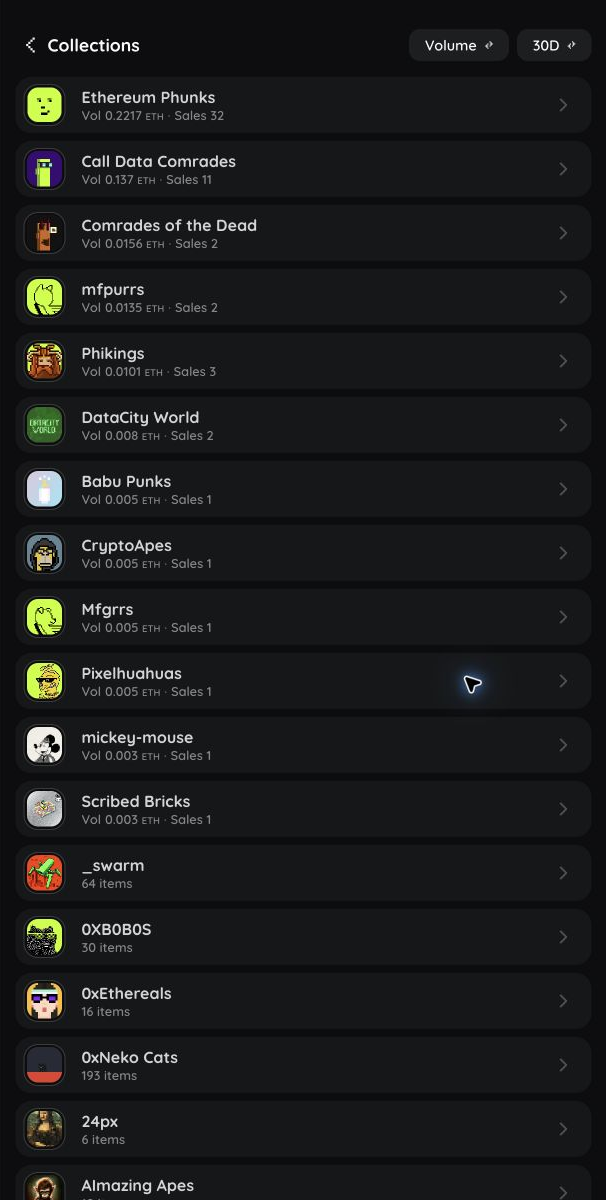
- Open Collections from a discovery link or the desktop sidebar, adjust the ranking and time period, then select a collection.
- Open Search from Home, enter the collection name, and select it under Collections.
The collection name, image, follower count, statistics, and section tabs at the top confirm that the collection page opened.
Browse collection sections
Choose a section below the collection summary:
| Section | Use it to |
|---|---|
| Owned | See items from this collection owned by the account shown on the page |
| Collection | Browse the complete processed item set and filter by collection traits |
| Market | Browse active listings for this collection |
| Holders | Review ownership counts and find a holder |
| Activity | Review creation, transfer, sale, listing, comment, bid, and escrow history |
| Comments | Read or join the collection discussion |
The selected section is highlighted. Scroll the section horizontally if a label is not visible on a narrow screen.
Browse and filter collection items
- Choose Collection.
- Open the collection filters.
- Choose any available traits or content types.
- Apply the filters and browse the updated grid.
- Select an item to open its Ethscription detail page.
- Reset the filters if the grid is empty.
Traits appear only when the collection information includes them.
Review holders
- Choose Holders.
- Review each account and the number of items it holds.
- Search for an address when you need a specific account.
- Enable Include escrowed if you also want to count items held in a supported marketplace contract.
- Select a holder to open that account's public profile.
An empty result means no holder matches the current search or escrow setting.
Review collection statistics
The statistics panel appears above the collection sections when statistics are available. It can show supply, holders, volume, sales, average price, holder change, launch date, and activity over time.
Select the chart or matrix controls when available to inspect a date or activity cell. Statistics use processed events and can lag the latest Ethereum block.
Follow a collection
- Open the collection page.
- Select Follow or Follow back near the collection name.
- Return to Home > Following to see future matching activity.
The button changes to Following when the follow is active. Select Following, then confirm Unfollow, to remove it.
If the Follow control is unavailable, verify your wallet and confirm that the page represents a recognized collection.
Join holder chat
- Open an eligible collection.
- Connect or sign in to Chat with the same wallet address that is connected to floored. A burner or different Chat identity cannot open the group for that wallet.
- Select Join Group near the collection actions.
- Allow floored to check whether the connected wallet owns an eligible item.
- Wait if Pending Approval appears.
- Select Open Chat after the membership is ready.
The button shows the current result:
- Join Group remains visible when Chat is disconnected or the wallet is not eligible. Select it to read what is required.
- Pending Approval means the join request is waiting.
- Open Chat opens the XMTP conversation.
If joining fails, confirm that Chat is connected and that the correct wallet owns an item from the collection, then try again. Losing ownership can affect later access according to the group rules.
Add a collection comment
- Choose Comments.
- Enter your message in Leave a comment.
- Select Add comment.
- Review and approve the wallet transaction.
- Wait for Transaction complete.
The comment appears after Ethereum confirms and floored processes it. To reply, select reply, enter the response, select Add comment, and approve a separate wallet transaction.
To delete your own comment, select delete and approve the deletion transaction. The thread keeps a [deleted] marker so replies retain their context.
Transfer items from Owned
When you are viewing your own eligible items:
- Choose Owned.
- Select Select.
- Choose one or more items, or use Select All when available.
- Select Transfer and complete the destination and wallet review.
See Transfers before moving ownership.
If a section or control is missing
- Unknown collection groups show owned items only. They do not have collection statistics, follow, holder chat, or collection-specific sections.
- Select appears only for your own transferable items.
- Collection traits appear only when metadata provides them.
- Holder chat appears only for collections that offer one.
- Follow, comments, and transfer actions require a verified wallet.
On a touch device, pull down to refresh the directory or collection page. See Troubleshooting if the collection does not load or a confirmed change remains missing.