
Creator studio
Create prepares text, images, and supported files as Ethscription data. You can edit and preview without a wallet, then connect and approve an Ethereum transaction when you are ready to publish.
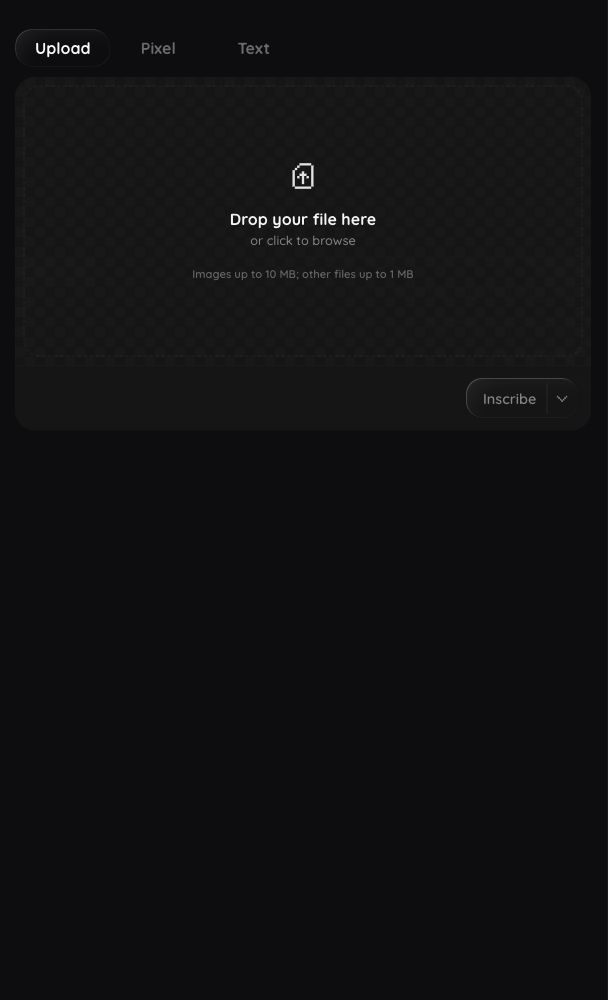
Before you start
- Guests can edit content and keep local drafts, but cannot inscribe.
- Inscription requires a verified wallet on the correct Ethereum network and enough ETH for gas.
- The final encoded content, including optional metadata, must be 150 KB or smaller.
- Drafts stay on the current device. They are not cloud backups.
- Inscribing is an Ethereum transaction. Published content cannot be edited or removed through the creator studio.
Find Create
Select Create in the bottom navigation on mobile or the left navigation on desktop. Then choose Upload, Pixel, or Text.
Create a text Ethscription
- Open Create and choose Text.
- Select Plain text, Markdown, JSON, or HTML.
- Write or paste your content.
- Use Attach file only when the selected format supports the attachment you need.
- Select Preview and confirm the rendered result.
- Review the character count, encoded size, and gas estimate.
- Add an optional destination or collection metadata from Inscribe options.
- Select Inscribe and complete the wallet review.
Do not enter secrets in HTML or other published content. Everything included in the Ethscription can become public.
Upload and inscribe a file
- Open Create and choose Upload.
- Drop a file into Drop your file here, or select the area to browse your device.
- Confirm the file name and preview when one is available.
- Review the encoded Size and estimated Gas.
- Turn on Use Gzip Compression only when the estimate shows useful savings and the content type supports it.
- Add optional destination or collection information from Inscribe options.
- Select Inscribe and complete the wallet review.
Images can enter the processing flow up to 10 MB. Other supported files use a 1 MB input limit. The final encoded result must still fit within 150 KB.
Use Choose another file if the selected file is wrong. Already compressed files can stay the same size or become larger with gzip.
Edit and inscribe an image
- Choose Upload and select an image.
- Use Edit to adjust scale, pan the preview, flip horizontally, preserve sharp edges for pixel art, or choose a supported format.
- Use Compress or compatible Gzip controls while watching the size and gas values.
- Select Preview to inspect the final result.
- If the final size is 150 KB or smaller, add any destination or metadata options.
- Select Inscribe and approve the wallet transaction.
If compression makes the image larger, floored keeps the original. Reset returns the image editor to its initial state.
To make pixel-level changes, select Edit as pixels when it appears. See Pixel art studio.
Save a draft
- Prepare text, an image, or a file in Create.
- Open Drafts.
- Select Save draft.
- Look for Draft saved.
Use Update draft after changing a saved draft. To continue older work, open Drafts and select Restore draft. Draft restored confirms that it is active in the editor.
To remove a saved copy, select Delete draft and confirm. If that draft is open, the editor remains available as an unsaved draft.
floored stores up to six drafts within a combined 12 MB device limit. If storage is full, delete an older draft or reduce its size. Clearing browser or app data can remove drafts.
Inscribe to another address
By default, the connected wallet becomes the initial owner. To choose another owner:
- Open Inscribe options.
- Choose Inscribe to Address.
- Enter a complete Ethereum address or ENS name.
- Confirm the resolved destination.
- Return to the editor and continue with Inscribe.
Use Remove address in Inscribe options to restore the connected wallet as the destination. Always verify the destination in the final wallet review.
Add collection metadata
- Prepare the content in Create.
- Open Inscribe options.
- Choose Create New Collection or Add to Existing Collection.
- Complete the collection and item fields.
- Select Done to return to the editor.
- Confirm that the metadata still fits within the final 150 KB limit.
Use Remove metadata if you no longer want to include it. Removing metadata discards the unsaved metadata changes. See Metadata and collections for the full workflow.
Review and inscribe
Before selecting Inscribe, check:
- The final content and preview
- Encoded size of 150 KB or less
- Destination address
- Collection and item metadata, if used
- Estimated gas
- Active wallet and network
Then:
- Select Inscribe.
- Wait for Check wallet and review the transaction.
- Approve only if the destination, transaction data, network, and fee match your choices.
- Wait through Confirming on Ethereum.
The transaction transfers 0 ETH as the inscription value, but you still pay Ethereum gas. The content is stored in the transaction data.
How to know it worked
Ethscription created means the Ethereum transaction confirmed. The completion screen shows its transaction hash and can offer:
- View
- Share
- List
- Transfer
- Create another
You can browse auctions in Market, but floored does not currently provide auction actions.
If the screen says Created on Ethereum. Collection confirmation is still pending, the Ethscription exists. Only the separate collection update is still processing. If the collection update is rejected, use the transaction details to verify the created Ethscription and review the metadata before another attempt.
If Create blocks the next step
- Inscribe is unavailable: Connect and verify a wallet, add content, and resolve any size or validation error.
- File is too large: Reduce image dimensions or quality, choose another format, enable useful compression, or select a smaller file.
- Draft storage is full: Delete an older saved draft or reduce its size.
- Draft storage is unavailable: Keep the current editor open and try saving again later.
- Image processing fails: Reopen the original image or choose a simpler supported format.
- Wallet transaction fails: Keep the draft, check the wallet, network, balance, and fee, then retry only after understanding the failure.
- Created item is not visible yet: Open the transaction from the completion screen and allow time for floored to process it.
See Fees and confirmations, Safety, and Troubleshooting before retrying an uncertain transaction.
Current limits
| Limit | Current value |
|---|---|
| Image input before processing | 10 MB |
| Other file input | 1 MB |
| Final encoded inscription | 150 KB |
| Saved drafts | 6 |
| Combined saved-draft storage | 12 MB |