Pixel art studio
Pixel is a grid editor for small raster artwork. Use it to draw from scratch, import compatible media, download a PNG, or continue to an on-chain Ethscription.
Before you start
- Guests can draw, download PNG files, and keep a local draft.
- Inscription requires a verified wallet and enough ETH for gas.
- Changing canvas dimensions can change how existing pixels fit. Save or download a copy before a large resize.
- The final PNG and optional metadata must fit within the active 150 KB inscription limit.
Start a new pixel drawing
- Open Create.
- Choose Pixel.
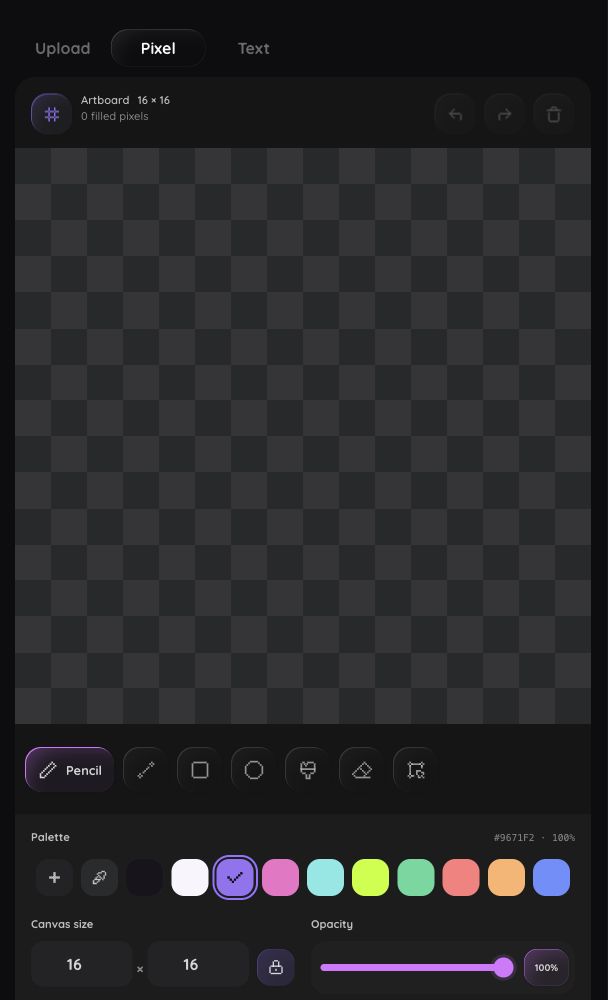
- Set the canvas width and height under Canvas size.
- Choose a color from Palette, or select Add a color.
- Choose Pencil.
- Draw on the artboard with a pointer, touch, or the keyboard.
- Select Preview to inspect the artwork without the editing grid.
The filled-pixel count updates as you draw. The active row and column identify the current cell.
Choose a drawing tool
| Tool | How to use it |
|---|---|
| Pencil | Select or drag across cells to apply the current color |
| Line | Set a start cell and an end cell to draw a straight line |
| Select and move | Drag around an area, then drag inside the selection to move it |
| Eraser | Select or drag across filled cells to clear them |
| Fill | Select a region to replace its connected color |
| Pick color | Select a filled cell to make its color active |
| Rectangle | Set opposite corners, then choose outline or filled mode |
| Ellipse | Set the shape bounds, then choose outline or filled mode |
Use Undo and Redo to move through the current edit history. Select Deselect when you are finished moving a selection.
Change color and opacity
- Choose a palette swatch or select Add a color.
- Adjust Opacity when you want a transparent or partially transparent color.
- Select Set opacity to 100% to return to a fully opaque color.
- Use Pick color to copy a color already on the artboard.
The active swatch and opacity value show what the next drawing action will use.
Resize or change the grid
- Open Pixel art settings.
- Enter the new Width and Height.
- Turn on Lock proportions if you want one dimension to follow the other.
- Show or hide Grid according to your editing preference.
- Use Preview to inspect the stored pixel dimensions at a readable scale.
Preview does not change the file or pixel dimensions.
Select and move pixels
- Choose Select and move.
- Drag to create a rectangular selection.
- Drag inside the selected area to move its pixels.
- Press Delete, or use the clear action, to remove only the selected pixels.
- Select Deselect to return to ordinary drawing.
The selection border confirms which pixels will move or clear.
Use the keyboard
- Focus a cell in the artboard.
- Use the arrow keys to move between cells.
- Press Enter or Space to apply Pencil, Eraser, Fill, or Pick color.
- For Line, Rectangle, or Ellipse, press Enter or Space at the start cell, move to the end cell, then press it again.
- Press Escape to cancel an unfinished line or shape.
- In Select and move, press Enter or Space to start a selection, use Shift plus an arrow key to expand it, and use an arrow key to move it.
- Press Delete to clear selected pixels or Escape to deselect.
Screen-reader announcements identify cells, colors, selection bounds, drawing completion, movement, and history changes.
Import an image or remix an Ethscription
From an upload:
- Open Create > Upload and choose a compatible image.
- Select Edit as pixels when it appears.
- Wait for the image to open in Pixel.
- Edit and preview it as a new draft.
From an Ethscription:
- Open a compatible Ethscription detail page.
- Select Remix.
- Wait for Create to open with the image loaded.
Import and Remix do not change the original file or Ethscription. If Edit as pixels or Remix is missing, the dimensions or content format are not supported by the current pixel editor.
Download a PNG
- Preview the artwork.
- Select Download PNG.
- Look for PNG downloaded and confirm the file in your device downloads.
Downloading creates a local file only. It does not publish the artwork on Ethereum.
Inscribe the artwork
- Finish and preview the drawing.
- Continue to the creation review.
- Check the PNG size, optional destination, optional collection metadata, gas estimate, active wallet, and network.
- Select Inscribe.
- Approve the wallet transaction and wait for Ethscription created.
See Creator studio for the full inscription flow.
If Pixel cannot complete an action
- Unable to prepare this PNG: Undo the last change, reduce the canvas dimensions or complexity, and try again.
- Unable to open this image: Return to Upload and choose a smaller image or a supported format.
- Download does not appear: Check browser download permission and available device storage.
- Inscribe is unavailable: Verify the wallet and confirm that the final encoded content is 150 KB or smaller.
- A tool behaves unexpectedly: Press Escape to cancel the current shape or selection, then use Undo.
See Troubleshooting if the editor repeatedly fails to import, export, or prepare the artwork.